
EPUBREADIFY HELP & SUPPORT
How Can We Help You?
Find answers, learn how EPUBReadify works, and get more from your reading library. Explore step-by-step guides for your account, library, reader, annotations, OPDS catalogs, reading stats, and integrations.
Start Here
New to EPUBReadify? Follow these guides to get your reading workspace ready.
Create Your Account
Learn how to register, verify your email, and activate your EPUBReadify account.
Get StartedSet Up Your Library
Upload EPUB books, search your library, create collections, and manage your reading shelf.
Manage Your LibraryStart Reading
Learn how to open books, customize the reader, use bookmarks, and continue from your saved position.
Learn to ReadExplore Reading Tools
Discover AI Summary, Read Aloud, translation, Split View, OPDS, and integrations.
Explore FeaturesOn this page
Sign Up Process
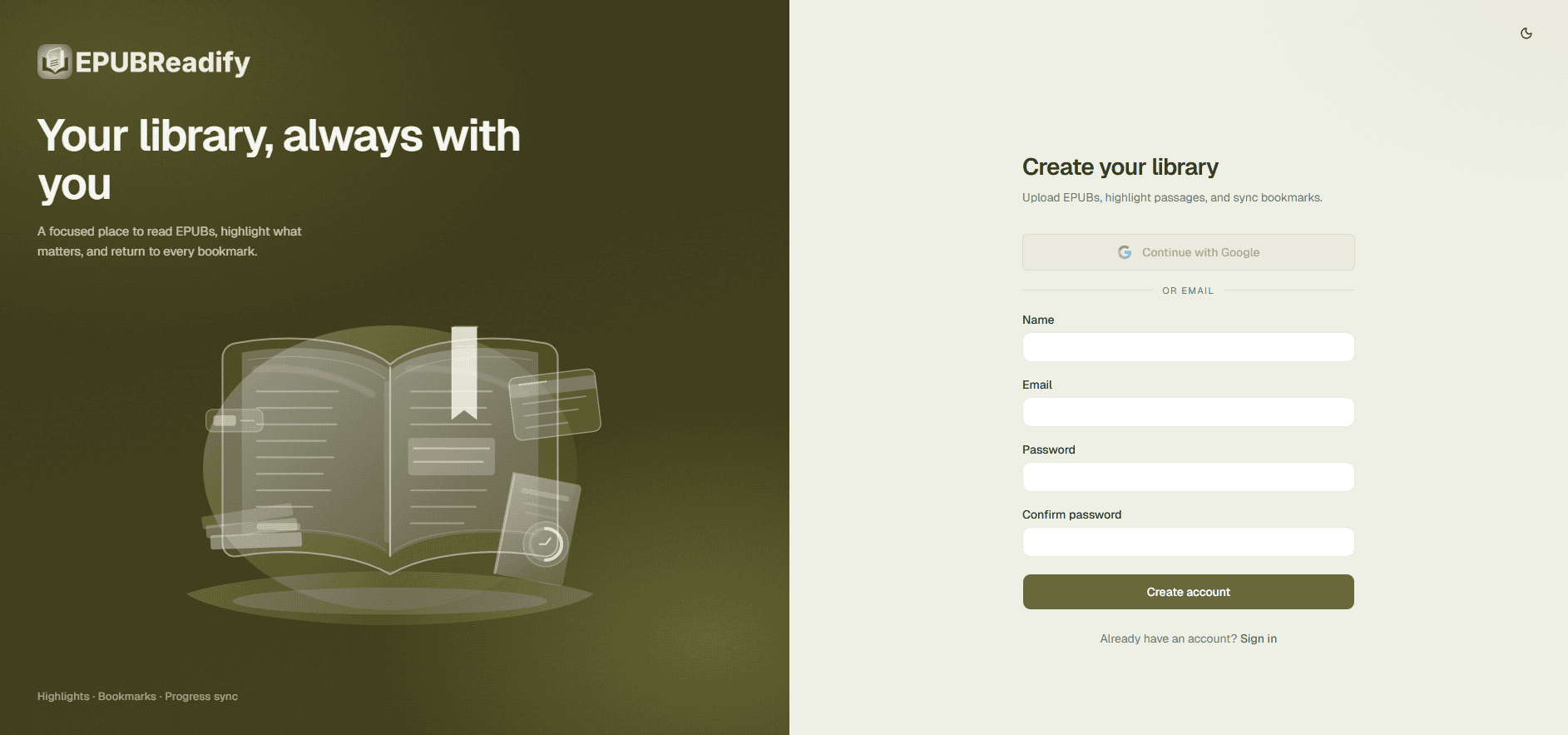
To create an account on EPUBReadify, visit the registration page, choose a sign-up method, enter your details, and verify your email.
Visit the Registration Page
Open https://app.epubreadify.com/register to begin creating your account.
Choose Your Sign-Up Method
Use Standard Registration with your name, email address, password, and confirmation password, or choose Google Sign-Up to register with your Google account.
Enter Your Details
Your name is used for your account profile, your email address becomes your login ID, and your password is used for your EPUBReadify account.
Verify Your Email
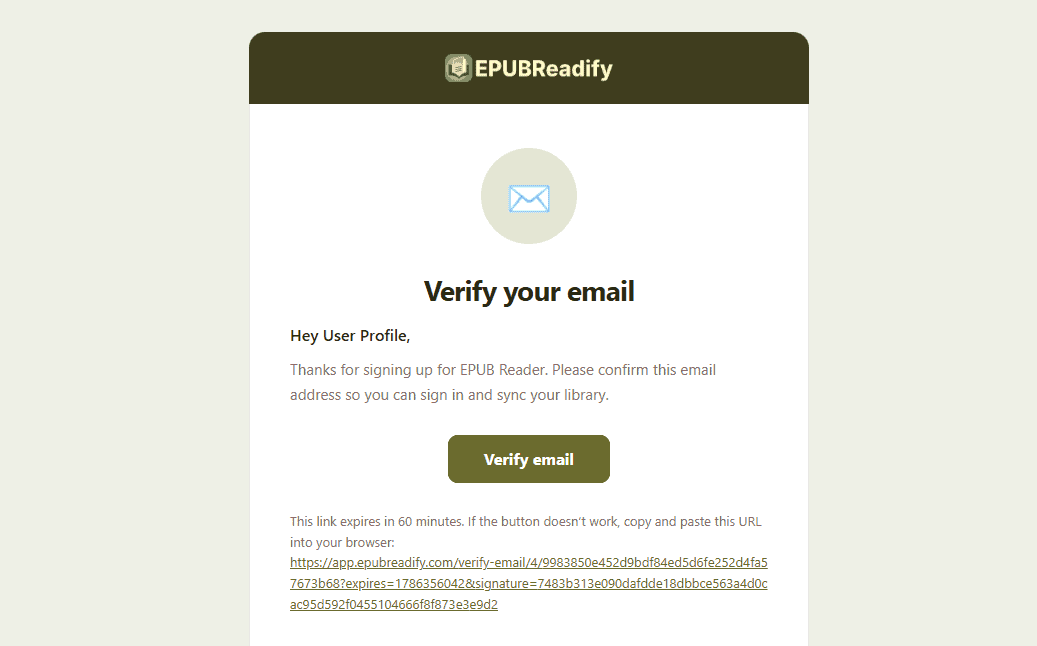
After signing up, check your inbox for an email from EPUBReadify. If you do not see it, check Spam or Junk, then click Verify Email Address. Your account becomes active after verification.
Overview
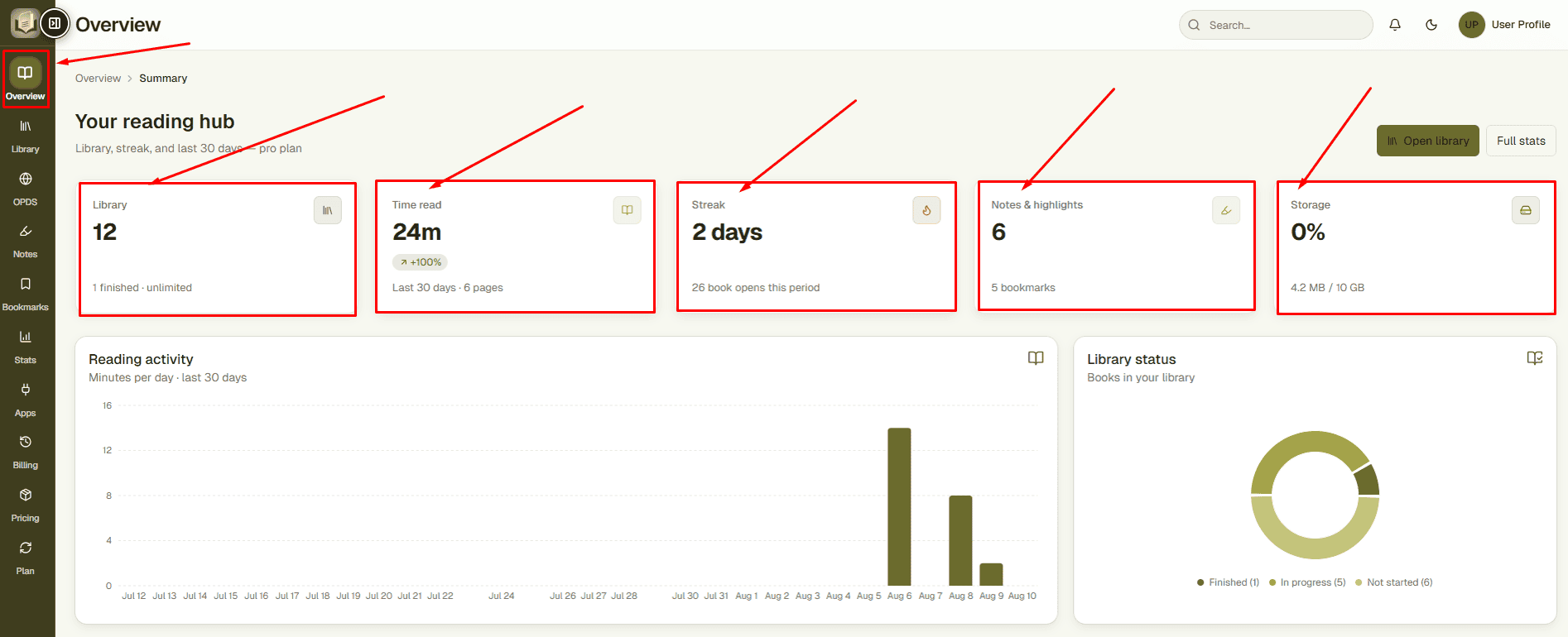
Your Overview dashboard gives you a quick picture of your library, reading activity, progress, notes, streaks, and storage.
- Total books
- Reading time
- Reading streak
- Notes and highlights
- Storage usage
- Recent reading activity
- Library status
- Continue Reading
- Recent notes
Continue Reading
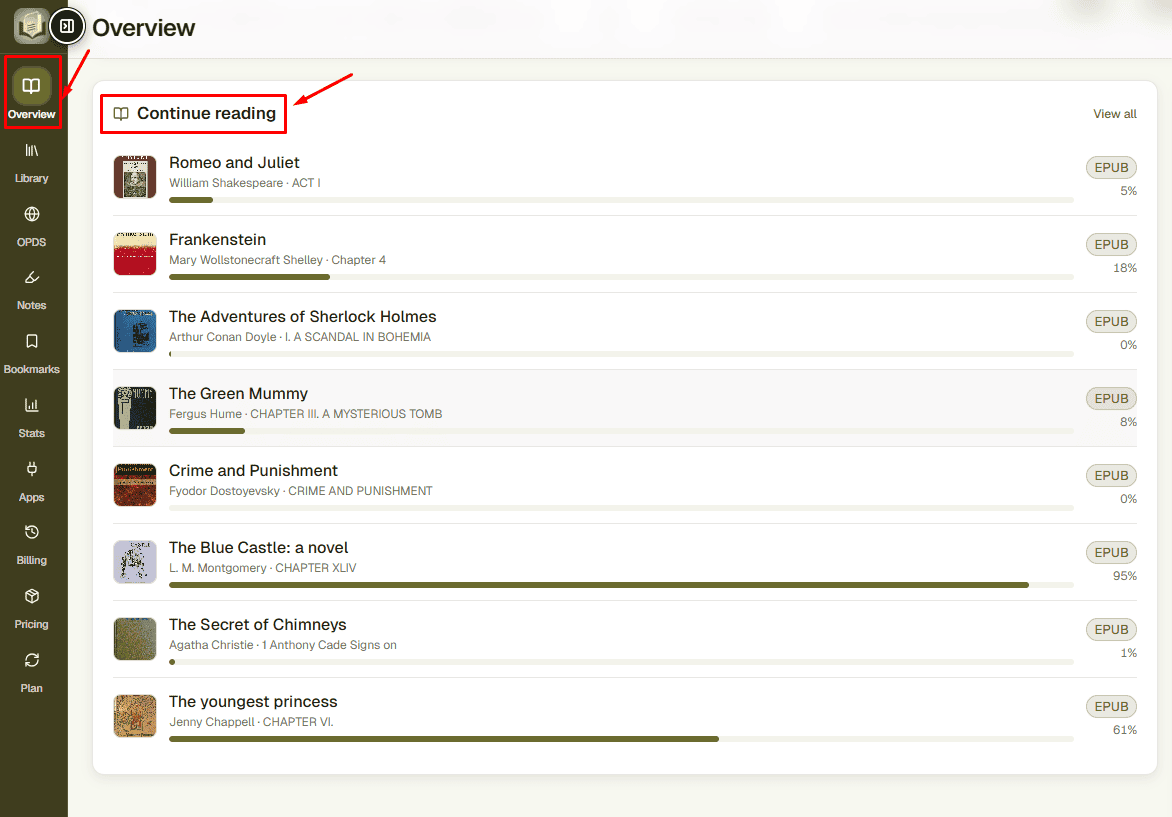
The Continue Reading area displays books you have already opened. Select a book to return to your previous reading session from your saved position instead of manually searching for the page or chapter again.
Recent Notes
The dashboard also provides quick access to recent annotations and notes, helping you return to important passages without opening every book individually.

Library
The Library is where uploaded EPUB books are stored and organized.
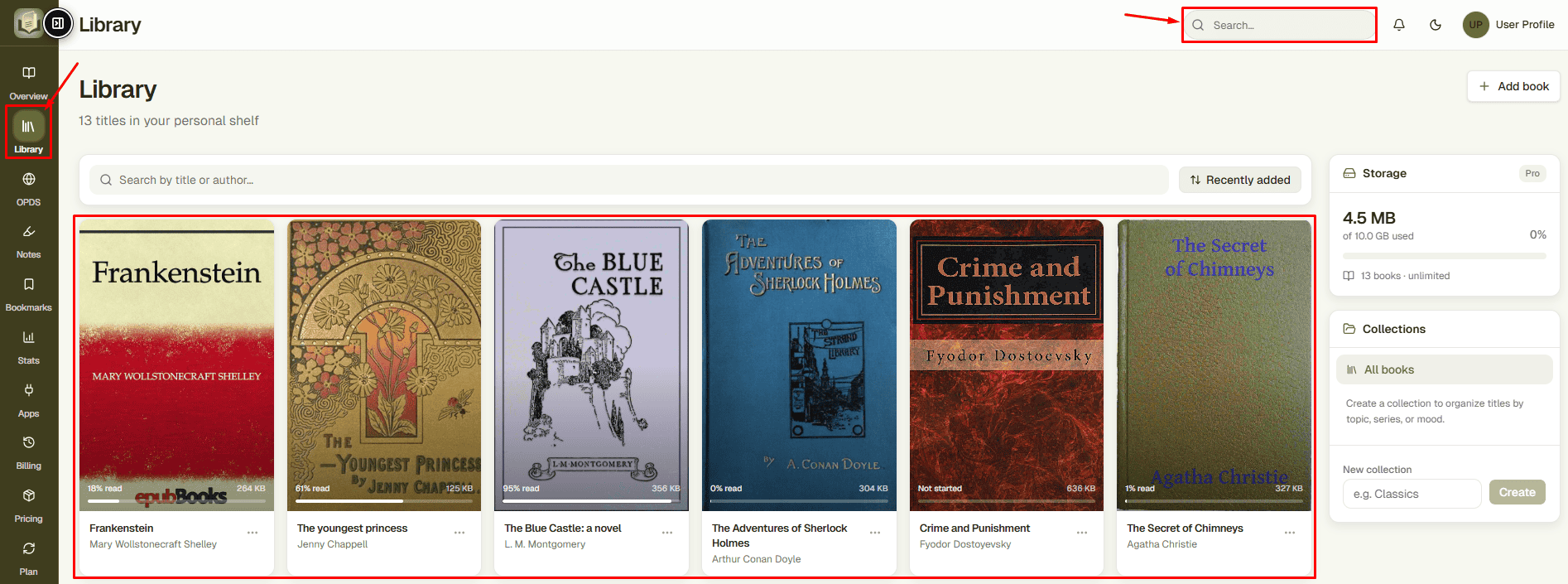
Search Your Library
Search by title or author, such as Moby Dick or Herman Melville.
Collections
Collections can organize books by topic, series, mood, course, genre, or reading priority.
Adding EPUB Books
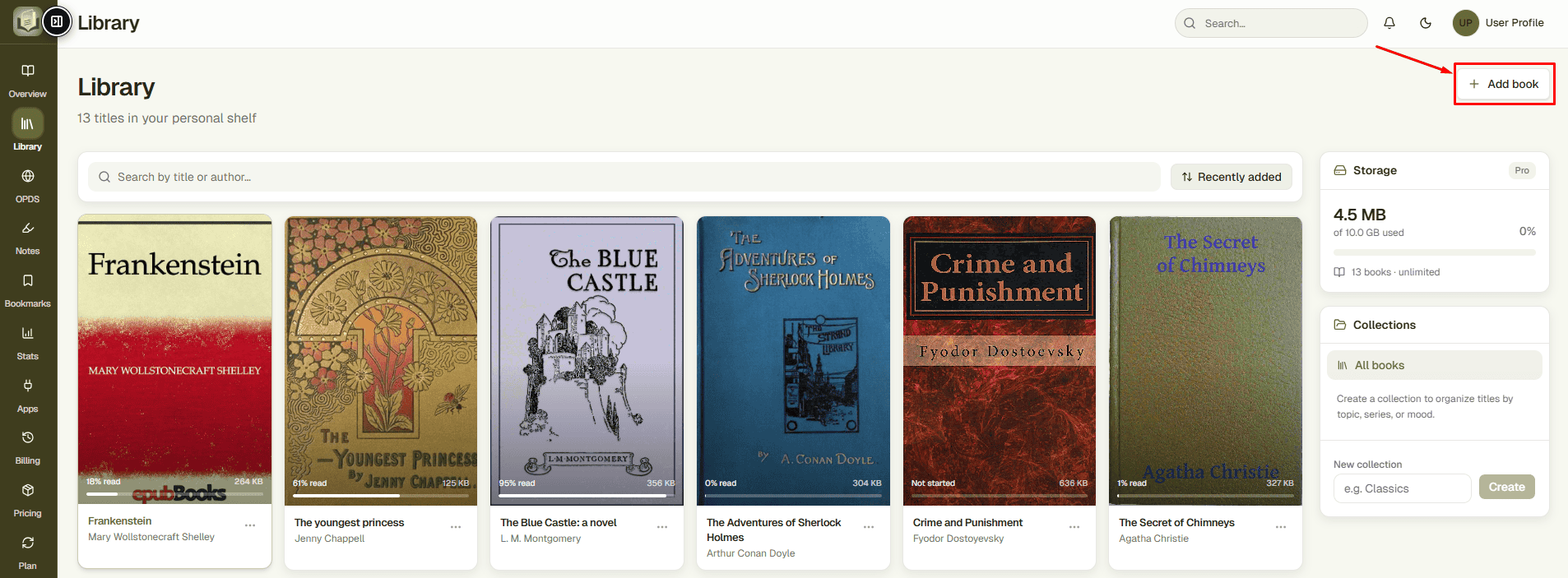
- Open Library
- Select Add Book
- Choose an EPUB file
- Wait for upload
- Confirm the book appears
- Select the book to start reading
Reading an EPUB Book
Opening a supported book launches the browser-based EPUB reader.
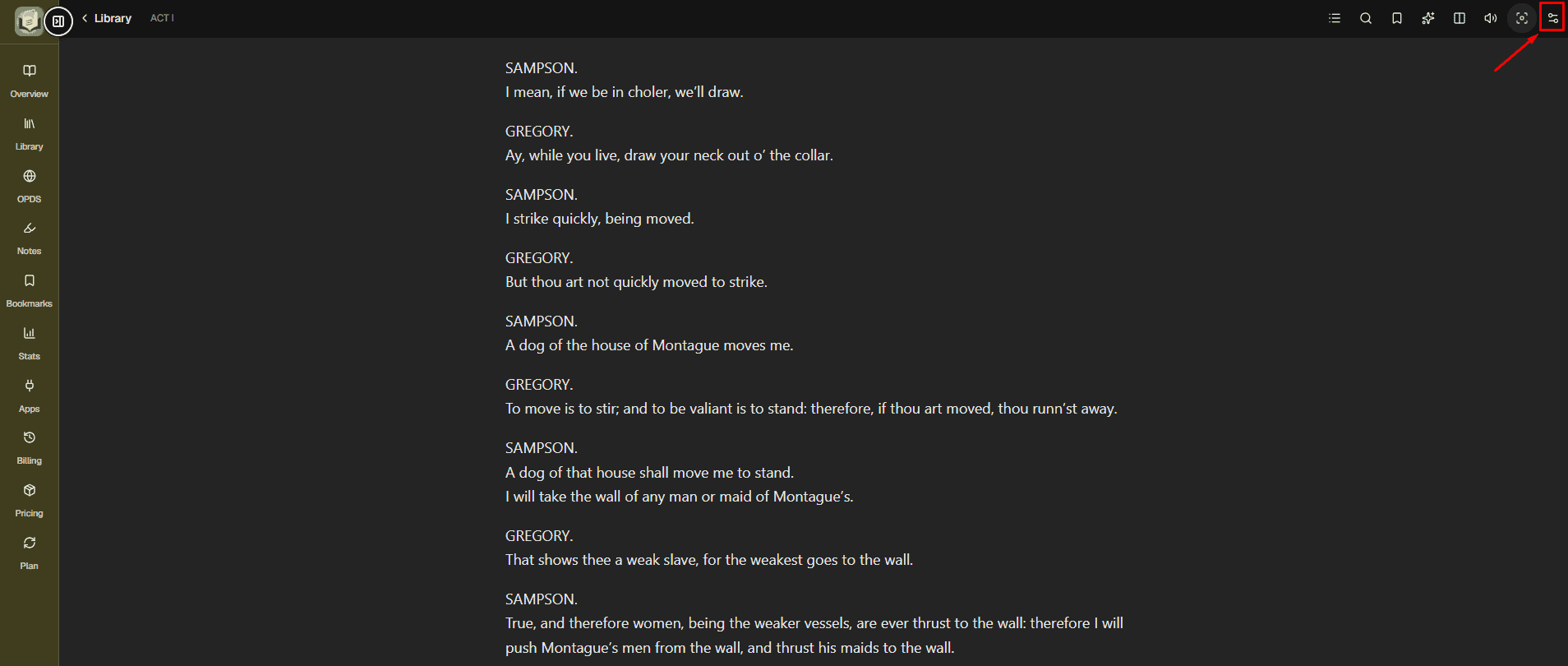
Reader Customization
Different books and devices may require different reading settings. EPUBReadify lets you adjust the reader to suit your preferred reading style.
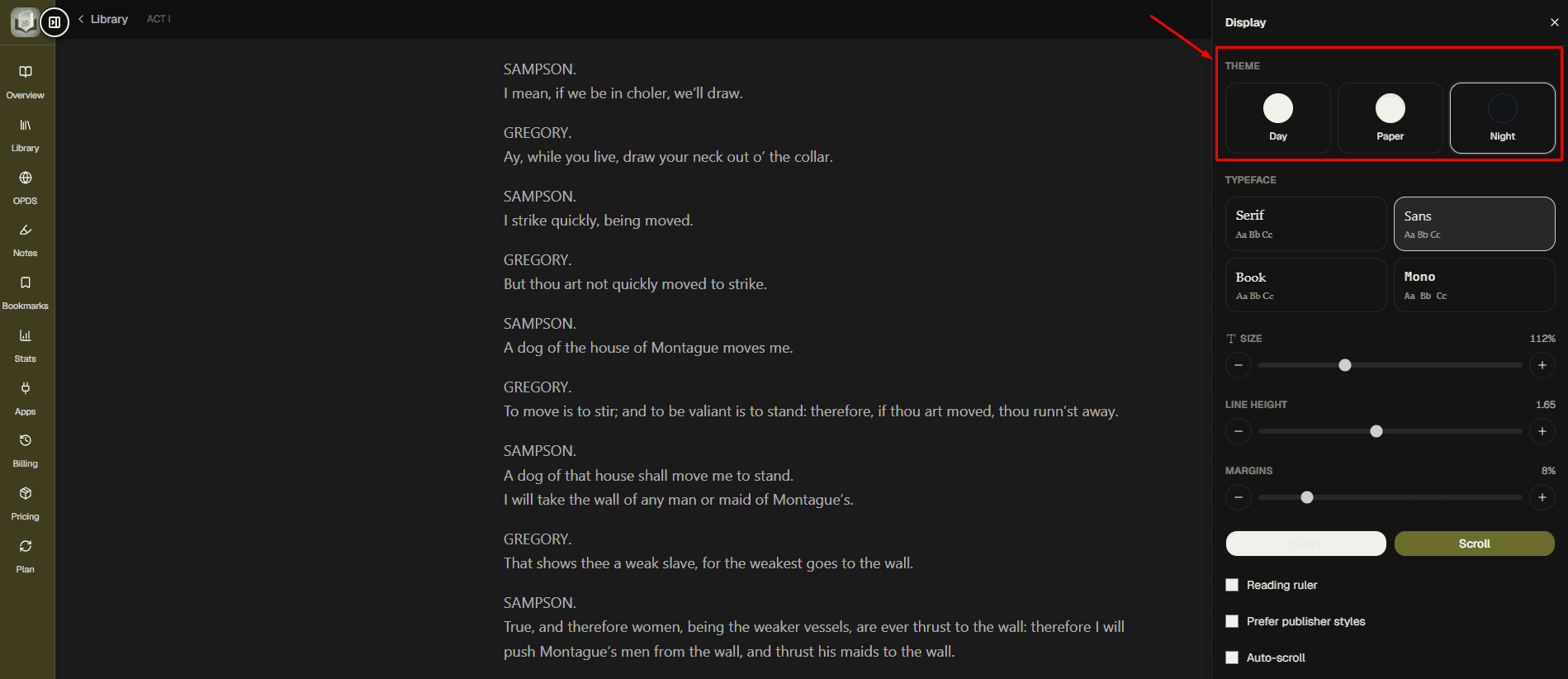
Themes
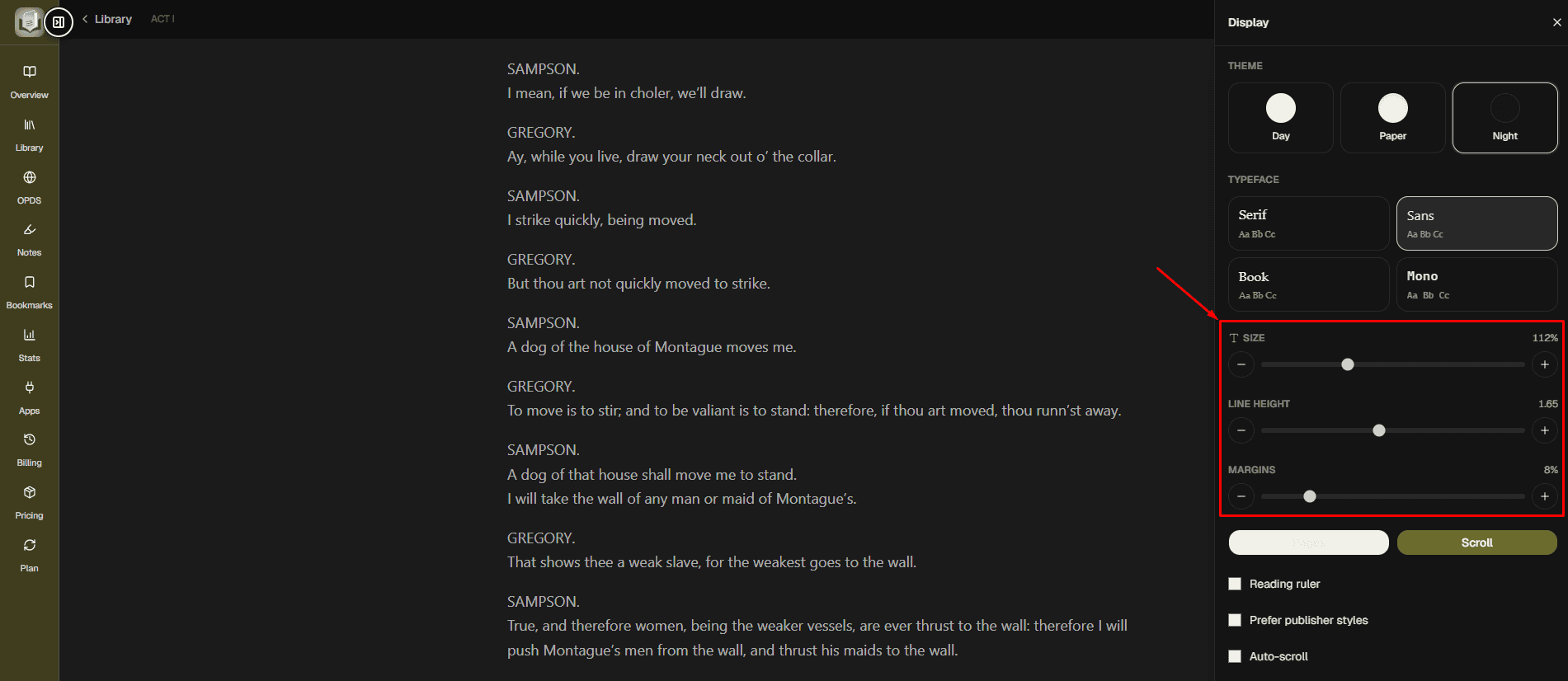
Use Day, Paper, and Night reading styles to make reading more comfortable in different lighting conditions.
Typography
Choose Serif, Sans, Book, or Mono, then adjust text size, line height, margins, and layout preferences.
Reading Tools
Use the reading ruler, Focus Mode, and Auto-scroll when reading long chapters or studying complex material.

AI Summary
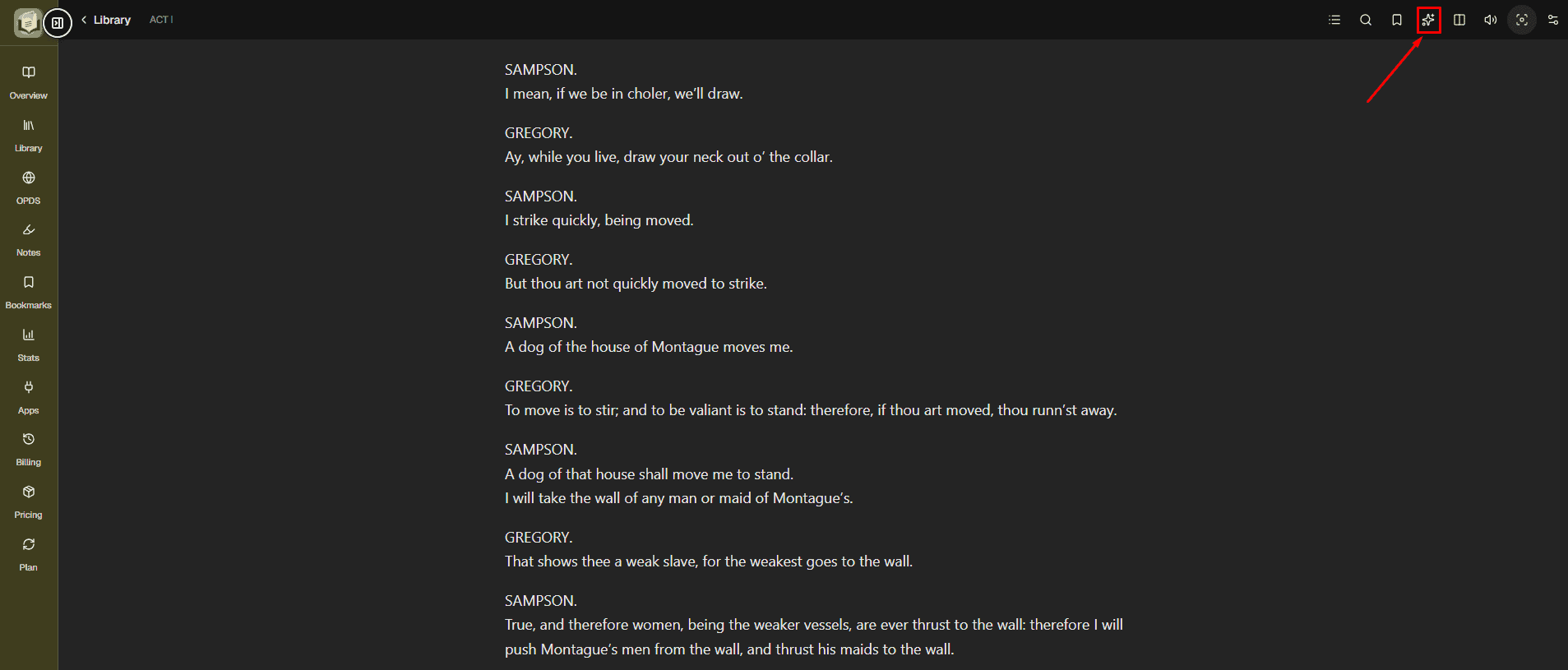
AI Summary is designed to help you understand book content more quickly by providing a summarized overview before or during deeper reading.
Read Aloud
Read Aloud converts book text into audio, so you can listen instead of reading everything directly on the screen.
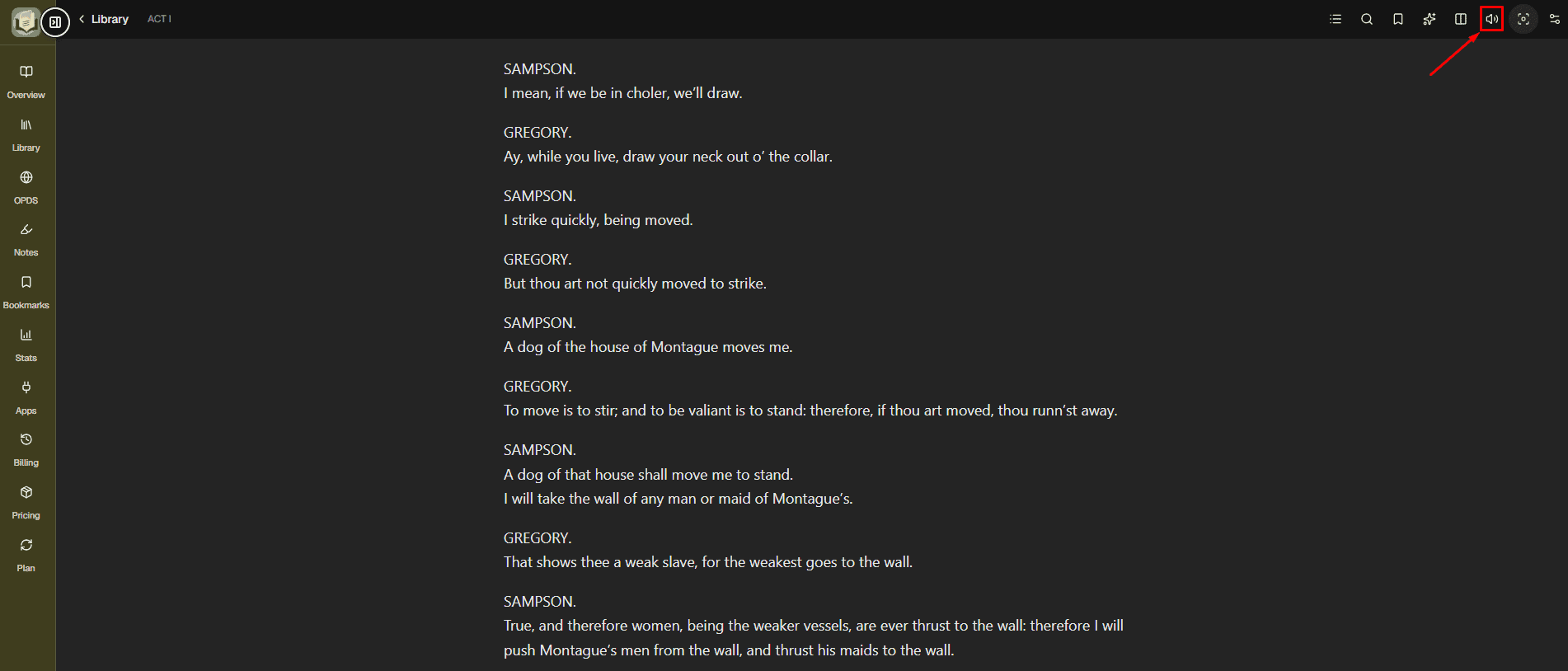
- Open your book
- Navigate to the text
- Select Read Aloud
- Start audio playback
- Pause or continue as needed
Translation
Translate while reading with automatic source-language detection and target-language selection across 185 languages.
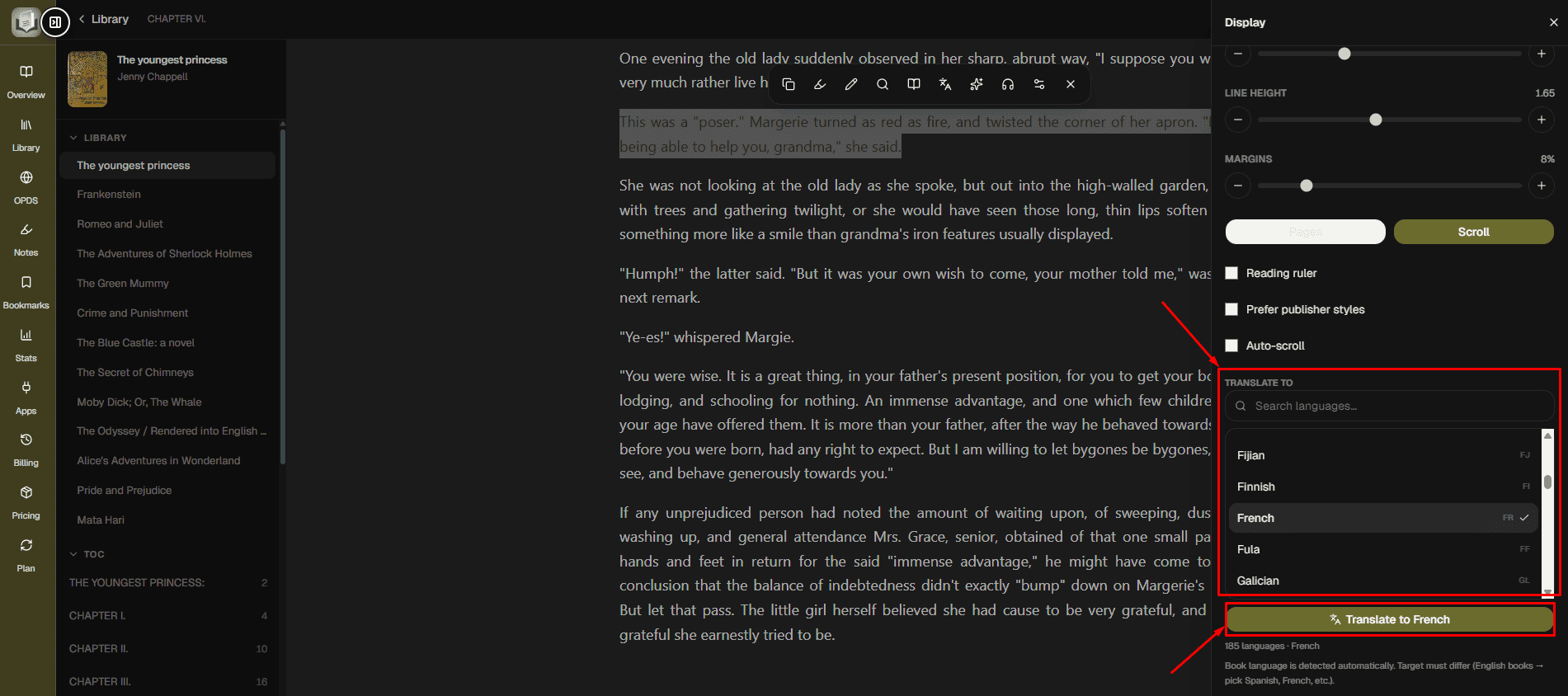
- Open EPUB book
- Open translation tool
- Allow language detection
- Select target language
- Start translation
- Continue reading translated content
Translation output may vary depending on the source material and language pair.
Split View
Split View lets you open two books side by side, which is useful when comparing or researching information across multiple sources.
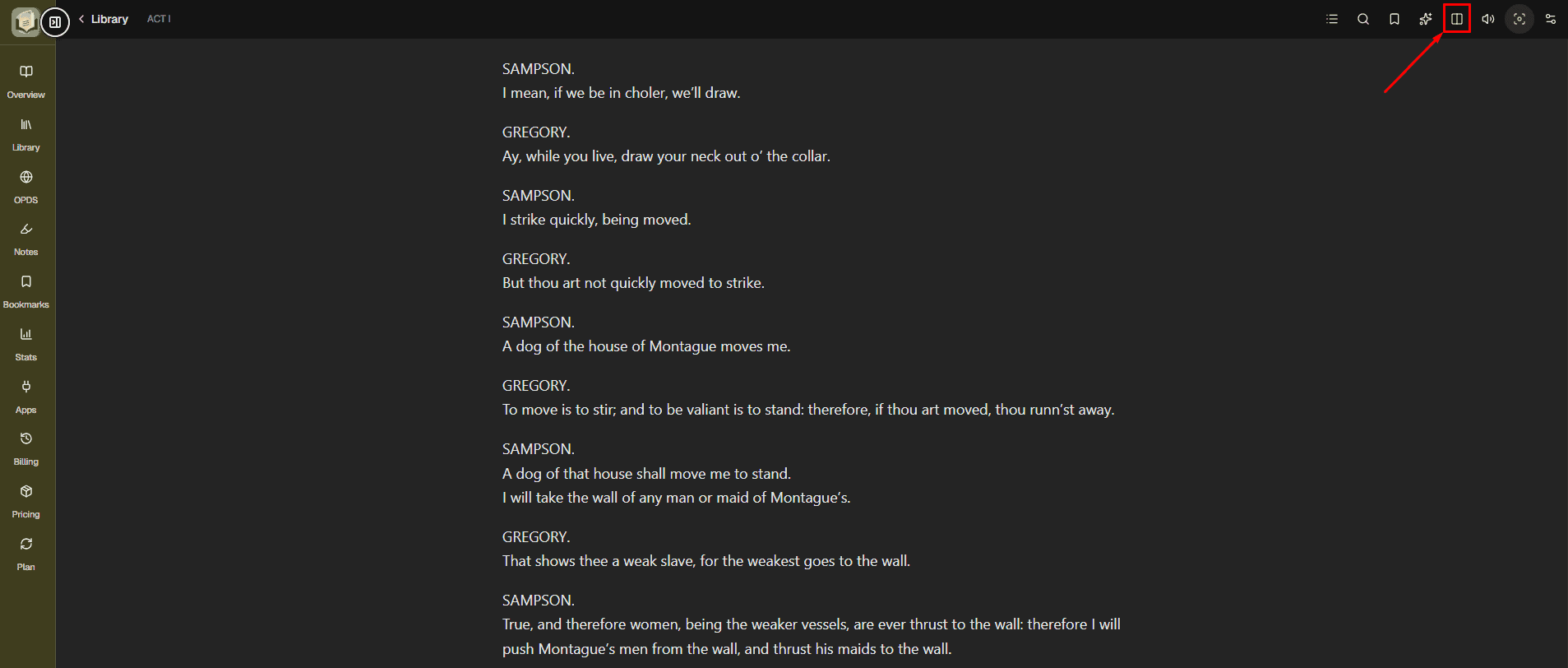
- Open first book
- Enable Split View
- Select another book
- Both books appear side by side
OPDS / Calibre Catalogs
OPDS stands for Open Publication Distribution System and provides a standardized way for reading applications to browse and retrieve publications from compatible catalogs. EPUBReadify supports compatible OPDS catalogs, allowing you to browse external book catalogs from your dashboard.
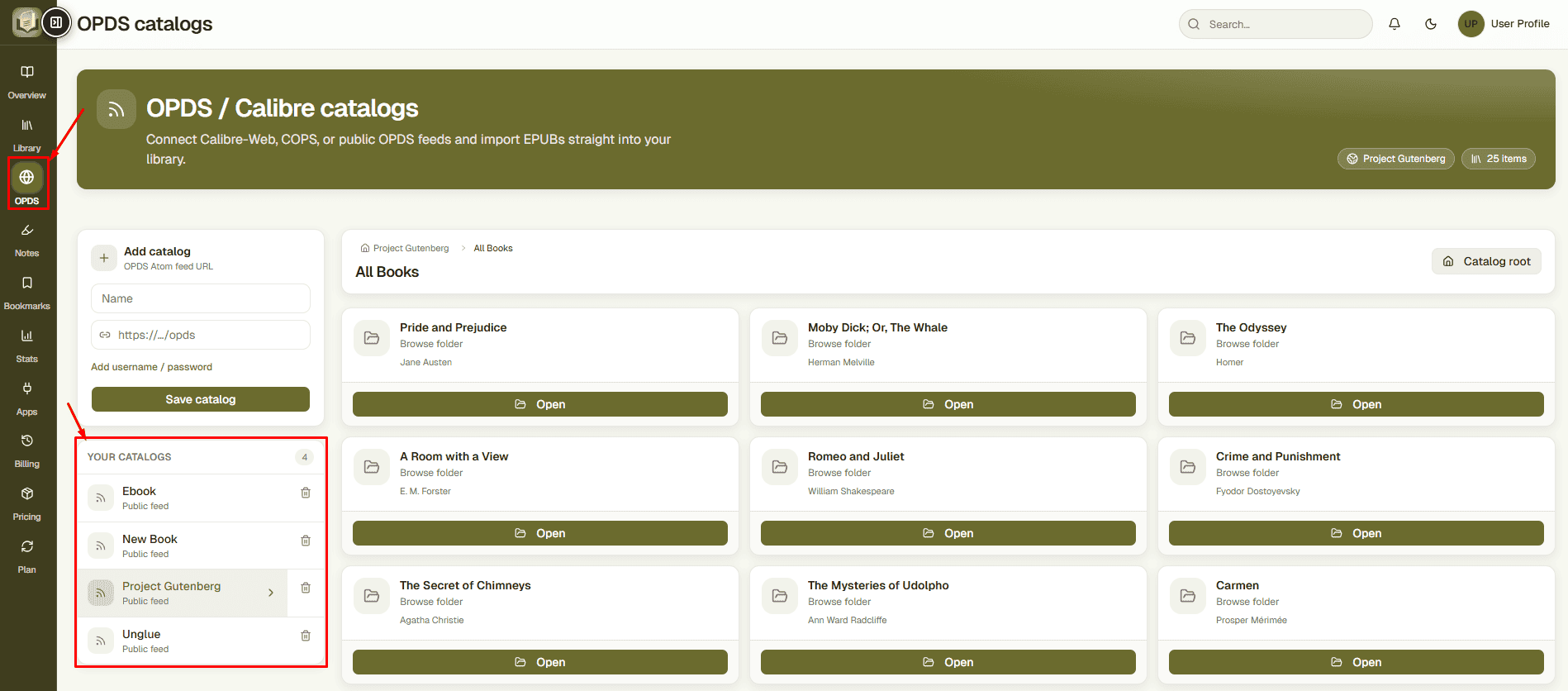
Connect → Browse → Import
- Open OPDS
- Select Add Catalog
- Enter catalog information
- Save
- Connect
- Browse catalog
- Open title
- Import supported EPUB
Notes & Highlights
The Notes & Highlights section keeps important passages and your personal thoughts organized in one searchable place.
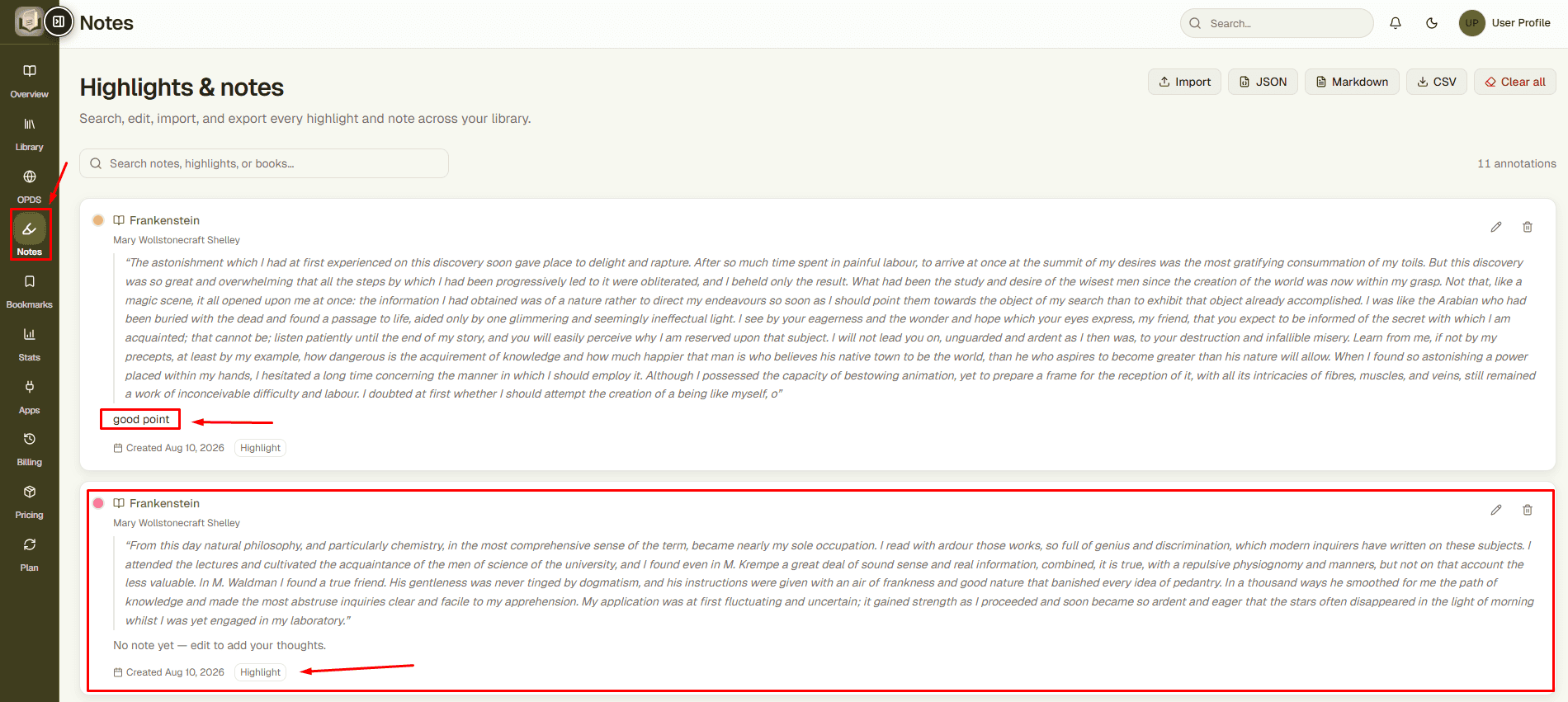
Highlights
- Select text
- Choose highlight
- Select available style/color
- Add note if needed
- Save
Notes
- Open Notes
- Search annotations
- Review saved highlights
- Edit existing notes
- Return to reading context
Bookmarks
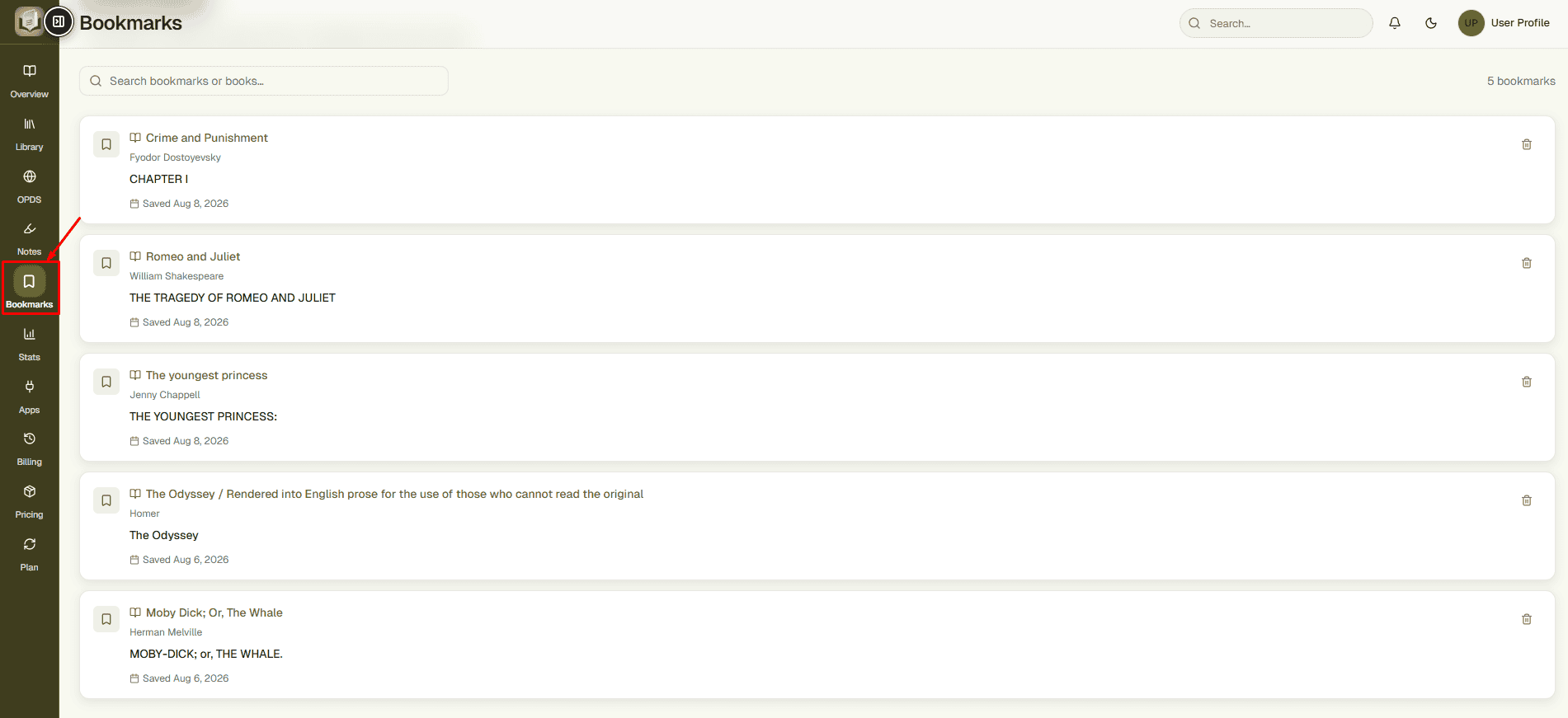
Bookmarks help you save important reading locations. Instead of searching through a complete book again, open the Bookmarks section and choose the saved location you want to revisit.
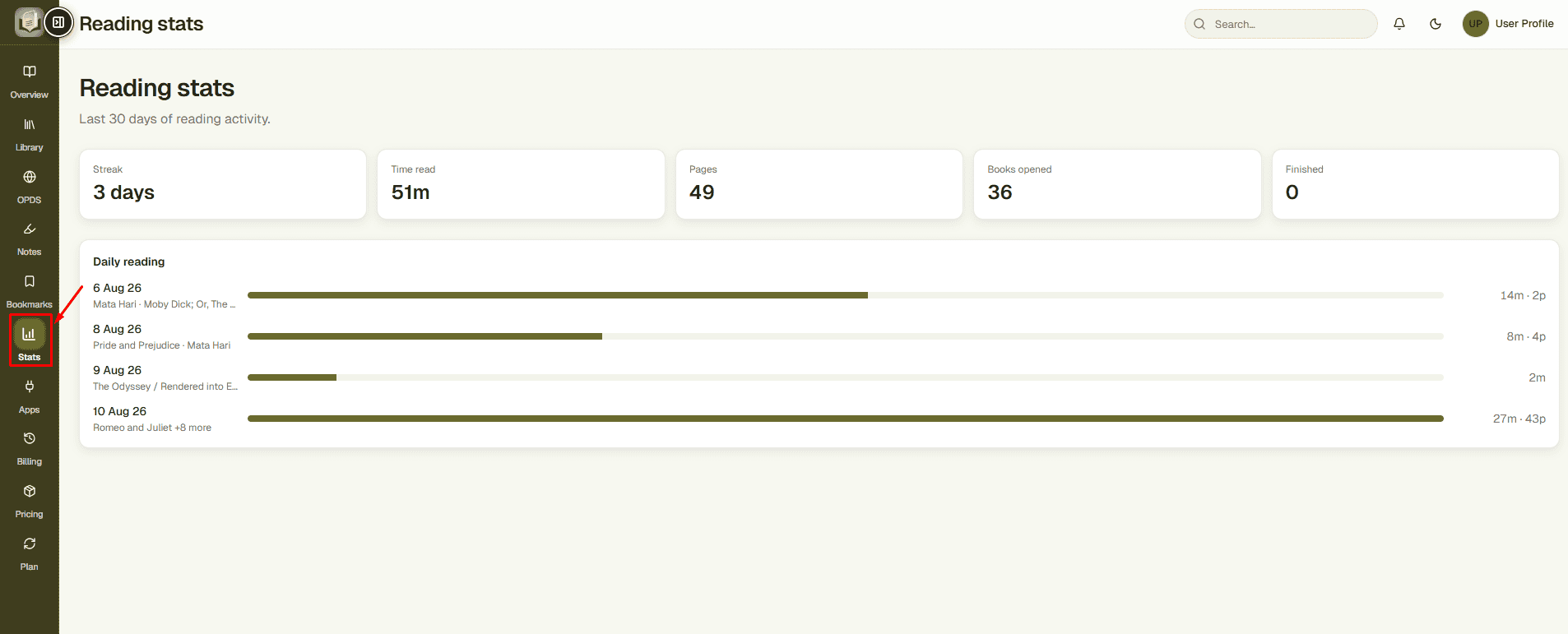
Reading Stats
Reading Stats provides an overview of your reading habits, including the last 30 days of activity, reading time, pages, opened books, finished books, and streaks.
Apps & Integrations
Apps and integrations connect EPUBReadify reading data with compatible external workflows.
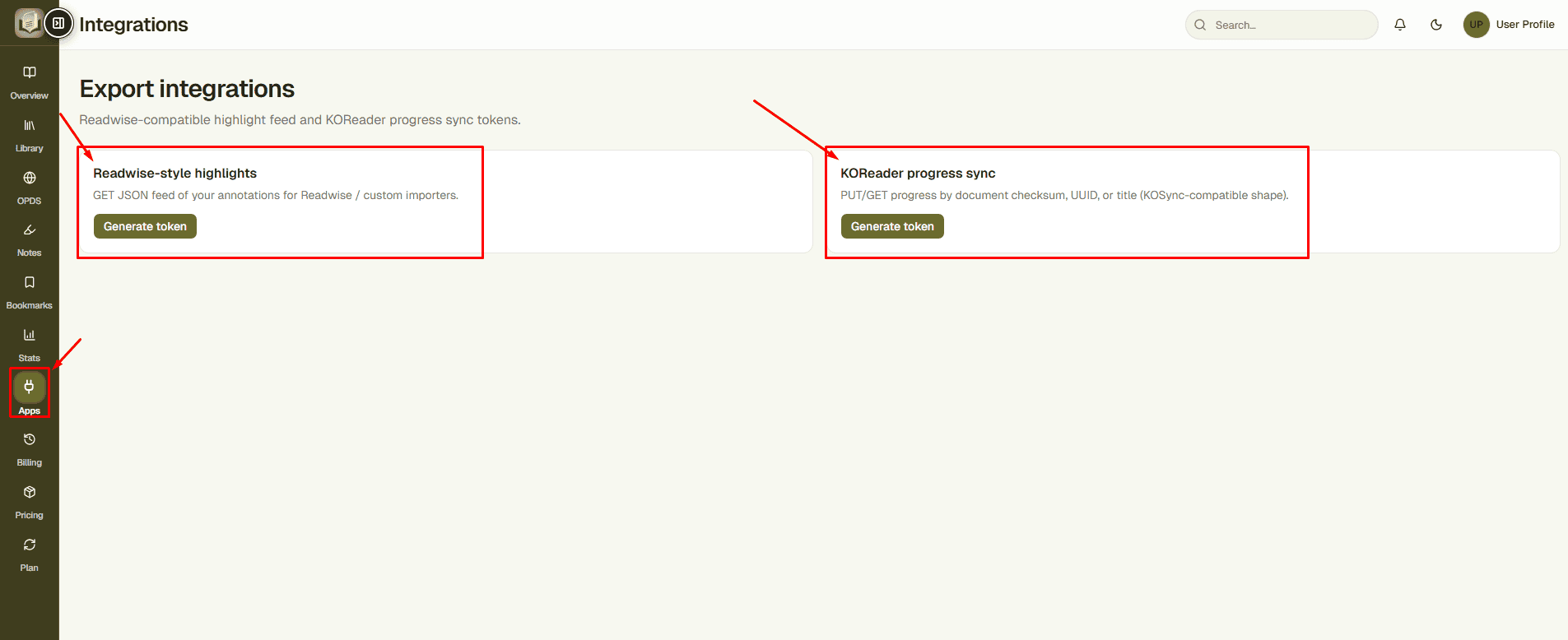
Readwise-Compatible Highlights
EPUBReadify provides annotation data that can be used with Readwise-style workflows and compatible importers.
- Highlights
- Notes
- Annotation information
KOReader Progress Sync
EPUBReadify supports progress synchronization using a KOSync-compatible structure for supported KOReader workflows.
Troubleshooting
Search Library by title or author and check collections.
Refresh the Library and confirm upload completion.
Refresh the reader or dashboard and confirm you are using the correct account.
Open Notes & Highlights and search using a word or phrase.
Open Bookmarks and locate the saved entry.
Recheck the catalog URL and verify the external catalog is available.
Allow activity to synchronize and refresh Stats.
Review Apps and reconnect the supported integration if necessary.
Final Notes
EPUBReadify gives you a simple, organized place to manage your EPUB library, continue reading across sessions, save notes and bookmarks, discover books through OPDS catalogs, and understand your reading habits.
A Quick Recap of Your Workflow
- Sign up and log in to access your personal EPUBReadify workspace.
- Check the Overview dashboard to review library activity, progress, notes, and storage.
- Open the Library to upload, search, organize, and access EPUB books.
- Start reading and continue from your saved position whenever you return.
- Use Notes & Highlights and Bookmarks to save important passages.
- Connect OPDS catalogs to browse compatible external collections and import supported EPUB titles.
- Review Reading Stats to understand reading time, streaks, pages read, completed books, and recent activity.
- Use Apps & Integrations to connect supported annotation or reading-progress workflows.
Keeping Your EPUB Library Organized
- Use Collections to group books by topic, project, genre, course, or reading priority.
- Use Library search when you need to locate a specific title or author.
- Keep meaningful Notes and Highlights for passages you may need to revisit later.
- Add Bookmarks to important chapters, quotations, references, or study sections.
- Review Continue Reading regularly to quickly return to books you have already started.
- Check storage information from the dashboard or Library as your collection expands.
Making the Most of Notes & Highlights
- Highlight only the passages you are likely to need again.
- Add a short note explaining why a passage is important.
- Use memorable keywords in notes so they are easier to search later.
- Review Notes after finishing a chapter or book.
- Use bookmarks for locations you want to revisit without creating a full annotation.
Getting More from OPDS Catalogs
- Give connected catalogs clear names so you can recognize them later.
- Make sure the catalog URL is entered correctly before saving.
- Browse individual catalogs instead of searching across unrelated sources.
- Import only the titles you want to keep in your personal library.
- If a catalog stops loading, confirm that the external OPDS source is still available.
Still Need Help?
If your question isn't covered in the documentation, the EPUBReadify support team can help with account access, EPUB uploads, library management, reading activity, notes, bookmarks, OPDS catalogs, integrations, and other technical questions.
Contact Support